
You can use this App to send Personalized Emails to Multiple recipient with unique attachments for each recipient. Personalization extends to both the message content and the attached files, ensuring every email is truly customized.
How to Install The App:
This app has been Published in Google Workspace Marketplace.
Click this Link: https://workspace.google.com/marketplace/app/datascoop_mail_merge_for_gmail_outlook/13594304713?flow_type=2
Click on Individual Install
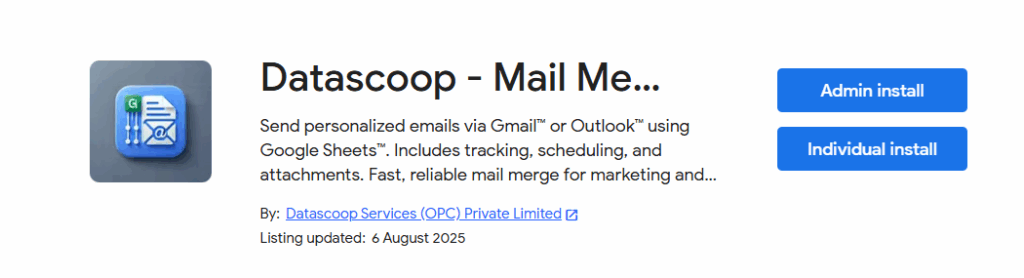
Once you click on Individual Install, It will ask for your Permissions:
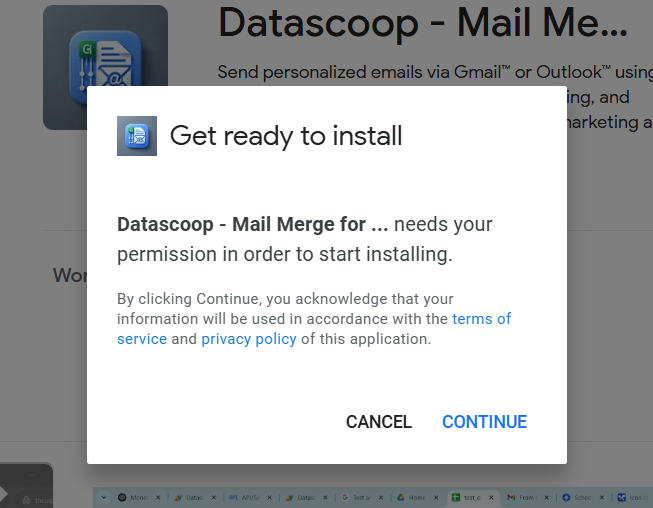
Click Continue. Choose Your Google Account and Give necessary Permissions.
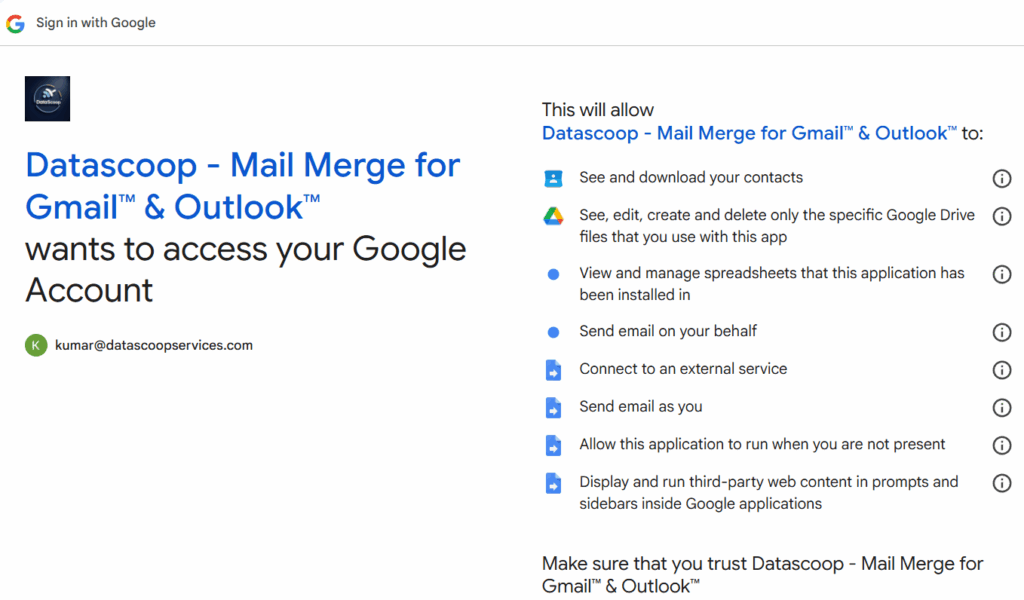
Once You Install it, Go to drive.google.com, Click New->Google Sheets->Blank Spreadsheet. Once the sheet is Opened, Rename it to Demo Mail Merge.
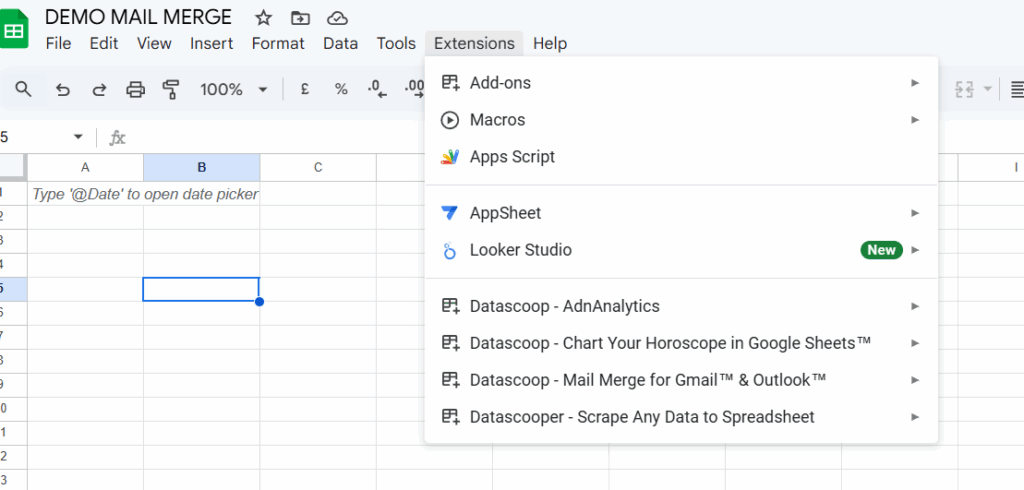
You can see the App in the Extensions bar.
How to Use the App:
Click on Extension Tab -> Datascoop – Mail Merge for Gmail™ & Outlook™
-> Advanced Mail Merge

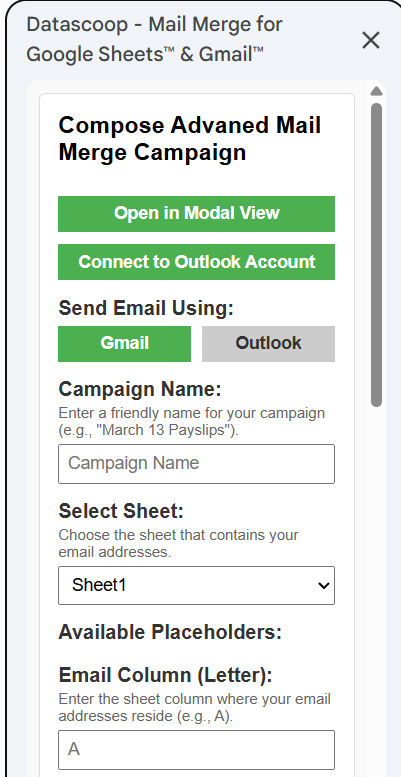
By Default, Since you gave the credentials of your gmail account while installing, you
can send emails using Gmail. If you want to send through Microsoft 365 Outllook, you click on connect to Outlook, it will open a new tab where you can authenticate using your Microsoft 365 account and give necessary permission.
Once it is connected to Microsoft 365 Outlook Account, you can see the message which says as “Already Connected to Outlook” and your outlook email id with which you connected.
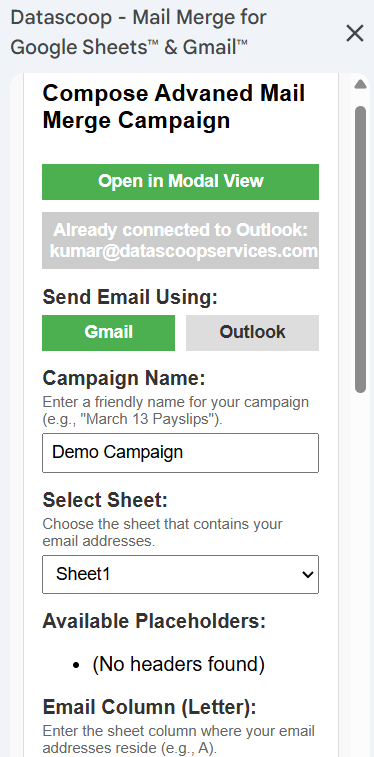
Depending on which email (Gmail or Outlook), you can click on the toggle provided.
For this Demo Purpose, I have selected GMAIL.
Add Headers to the Spreadsheet, Enter the campaign name, Enter the column name where Email id’s are provided. In my case, it is Column C of Sheet1.
You can also see the Headers Appearing as Available Placeholder in the Side UI bar.
You can add as much Headers as you want (depending on your use case).
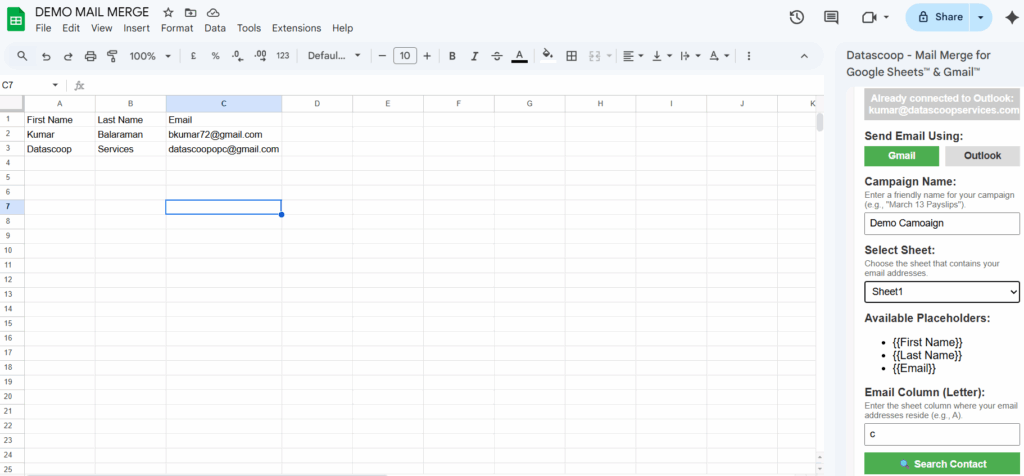
Next field is search contact, it will search the contacts you have saved in both Google & Outlook, depending on the toggle you have selected. Since we have selected GMAIL, in our case it will search in Google.
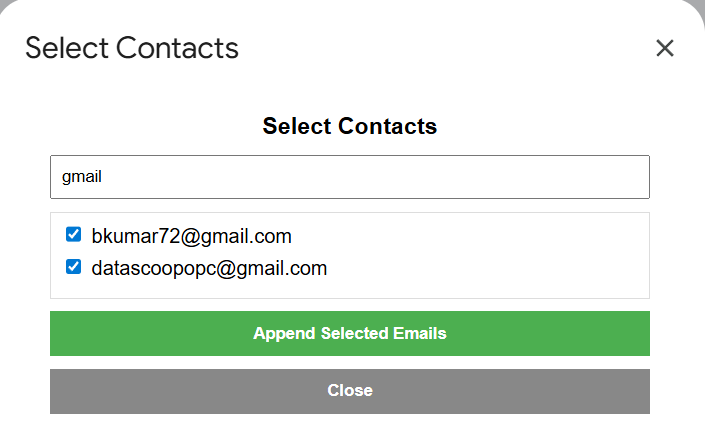
Click on Search Contacts will open a Modal view search box. In this case, I am giving the search string as gmail and you can see two of my gmail contacts appear. Click on the check box and then click on append. It will add to the Email column row which you selected earlier. In our case, it is column C in Sheet 1.
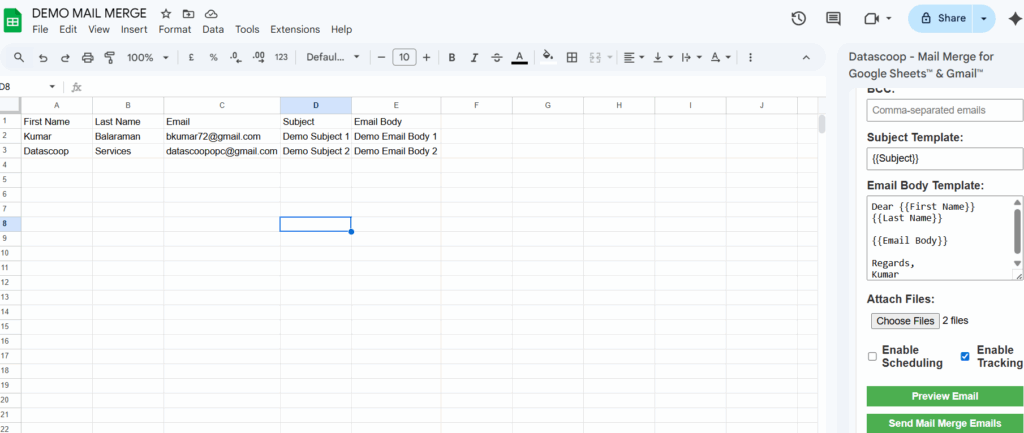
You can enter the Subject and Email body. You can use the place holder in both Subject and Email Body. For Demo Purpose, I have used it in Email Body.
I have also attached a file. Click on Enable Tracking if you want to track the time by when the recipients open this email campaign.

While the above screenshot sends the Same subject and Email body to the recipients, We can also customize the subject and email body by using the Headers in the spreadsheet. This way, you can send customized Subject and Email body unique to each recipients.
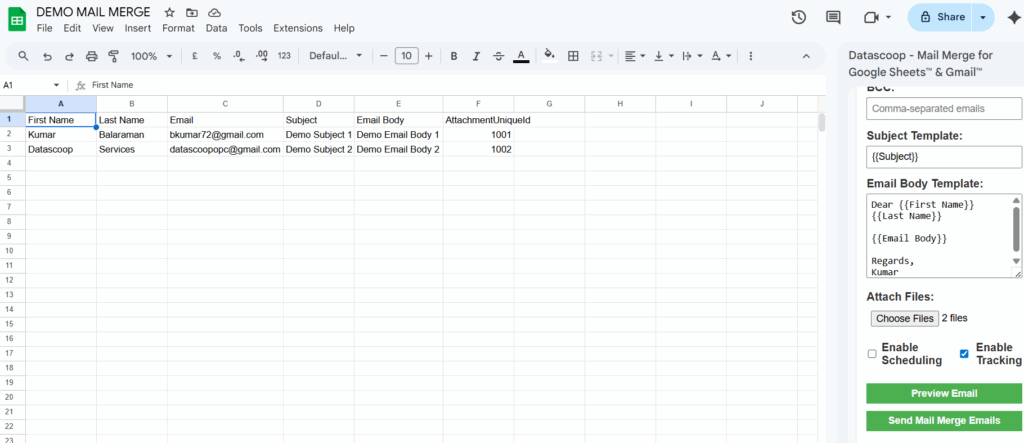
Now comes the interesting part of this App which is sending customized unique Attachment for each Recipients. You need to add the Header AttachmentUniqueId and then add the unique mapping data to the respective email id. For example it could be employee id or Student registration number depending on your use case.
For demo purpose, I have mapped 1001 to recipient bkumar72@gmail.com and 1002 to datascoopopc@gmail.com. 1001 could be any file like txt, rtf, ppt or pdf of your choice. so for demo purpose, I am sending a text file and hence I have attached 1001.txt and 1002.txt (you can do similar way for even 1000 recipients). Whatever the file you need to attach, you need to keep in a separate folder and attach to the App
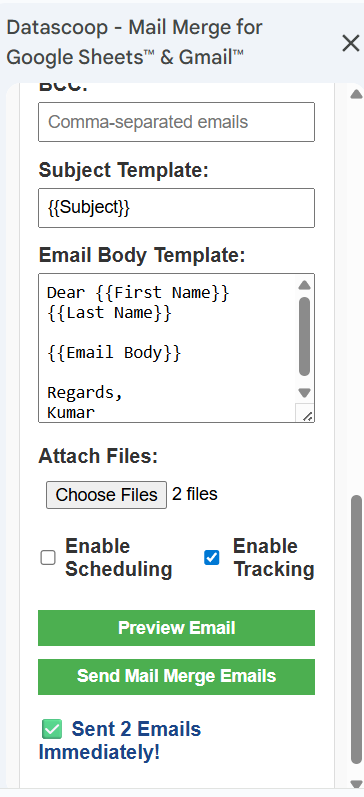
Once you click on Send Mail Merge Emails, it will send Emails to one by one email recipient as you have mentioned in Column C and then once it is processed, you can see it says “Sent 2 Emails Immediately”.
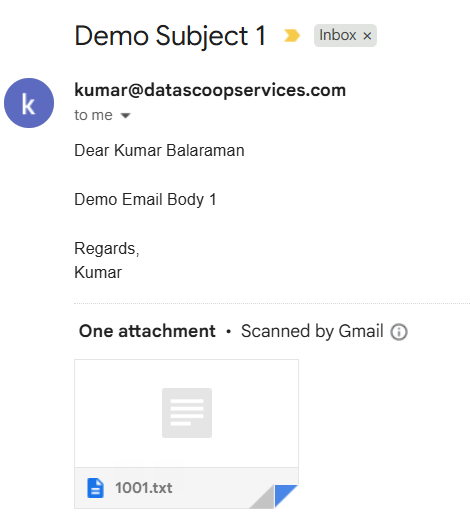
Since we have mapped 1001 to recipient bkumar72@gmail.com, only 1001.txt will go as attachment to bkumar72@gmail.com.
Conclusion: You can try free plan where in you can send emails to 25 recipients every day. For pricing & plan information, please refer to https://datascoopservices.com/mail-merge-for-gmail-outlook/. If you need a demo of the App, please send an email to support@datascoopservices.com.